Description:
Learn how to create a new sales invoice in the Bill program in minutes.
Steps to create an invoice #
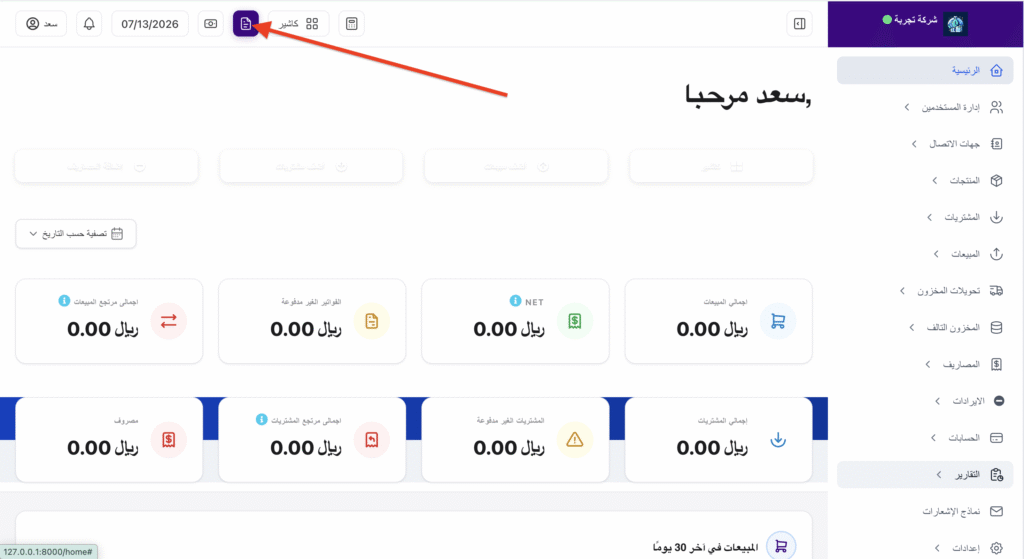
Step 1: Go to the billing page. #
From the home page, select:
Click the “Add New Invoice” button.
Step Two: Selecting the Client #
Click on the customer field, then:
- Select an existing client.
- Or click “Add New Customer” if they are not registered.
Step 3: Adding Products #
Click on “Add Product,” then:
- Select the product.
- Enter the quantity.
- Modify the price if you have the authority.
The system will automatically calculate the total.
📷 Image for adding products.
Step Four: Choosing a Payment Method #
Select the appropriate payment method, such as:
- in cash
- card
- Bank transfer
- Okay
📷 Photo of the payment method.
Step Five: Review the invoice #
Make sure to:
- Client Name
- Products
- Quantities
- Prices
- Discounts (if any)
- Tax
- Final Total
📷 Image for invoice review.
Step 6: Save the invoice. #
Click Save.
The system will generate the invoice directly.
After saving the invoice #
You could:
- 🖨️ Print the invoice.
- 📄 Download it in PDF format.
- 📱 Send it via WhatsApp.
- 📧 Send via email.
- ✏️ Edit it (subject to permissions).
comments #
💡 If tax is enabled, it will be calculated automatically based on the system settings.
💡 Ensure sufficient stock is available before saving the invoice.
💡 You can use the barcode scanner to quickly add products.
Common problems #
The client does not appear. #
Ensure that the customer is registered in the system and has not been disabled.
The product is not showing. #
Ensure the product is added to the inventory and is not archived.
I cannot save the invoice. #
verify:
- Customer’s choice.
- Add at least one product.
- Fill in all mandatory fields.


