Objective: To easily modify the invoice design and content via the system’s front-end interface.
Steps to modify the invoice: #
Step 1: Accessing Settings
From the main interface (home screen), scroll to the bottom of the page and tap the “Settings” option. #
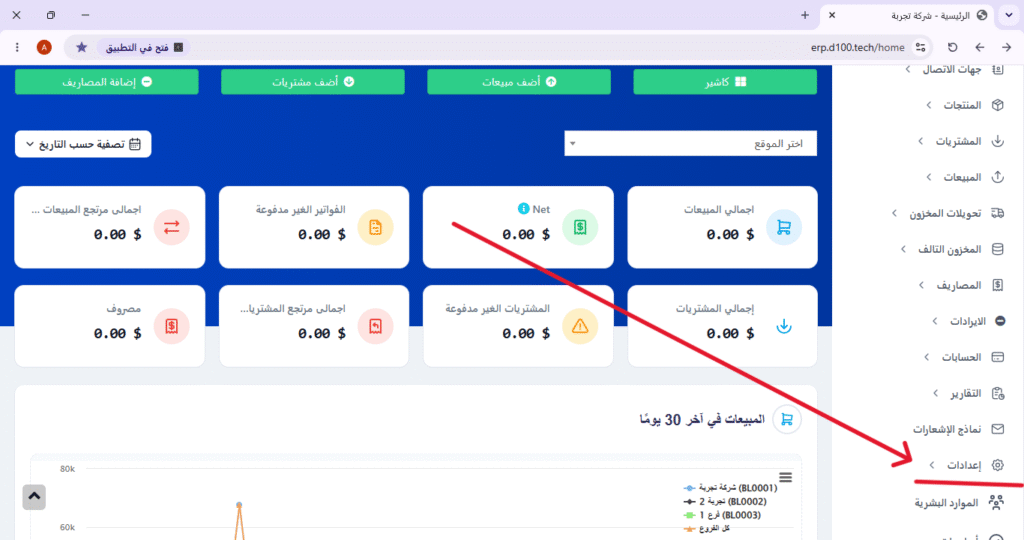
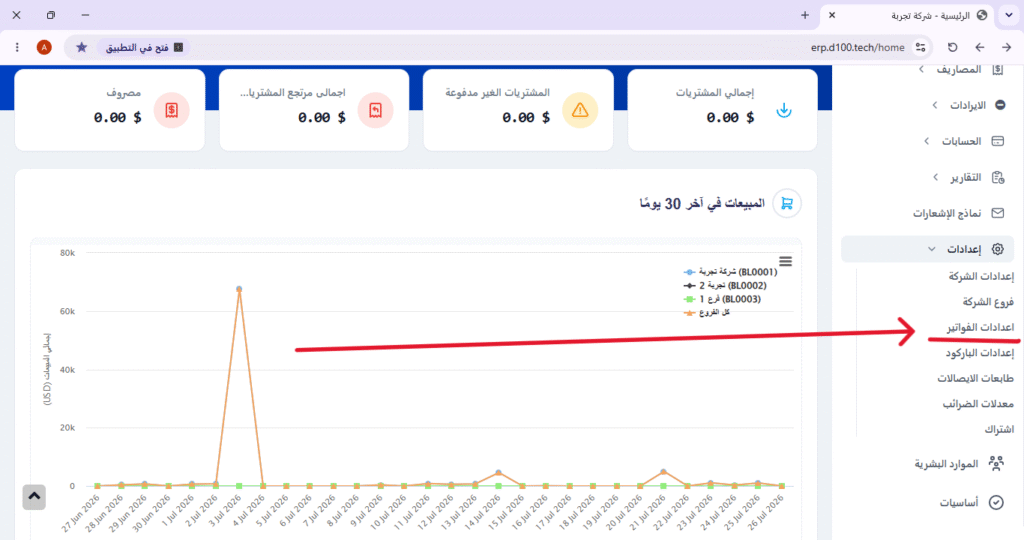
Step 2: Open Invoice Settings
From the settings menu, select “Invoice Settings” to access customization options. #
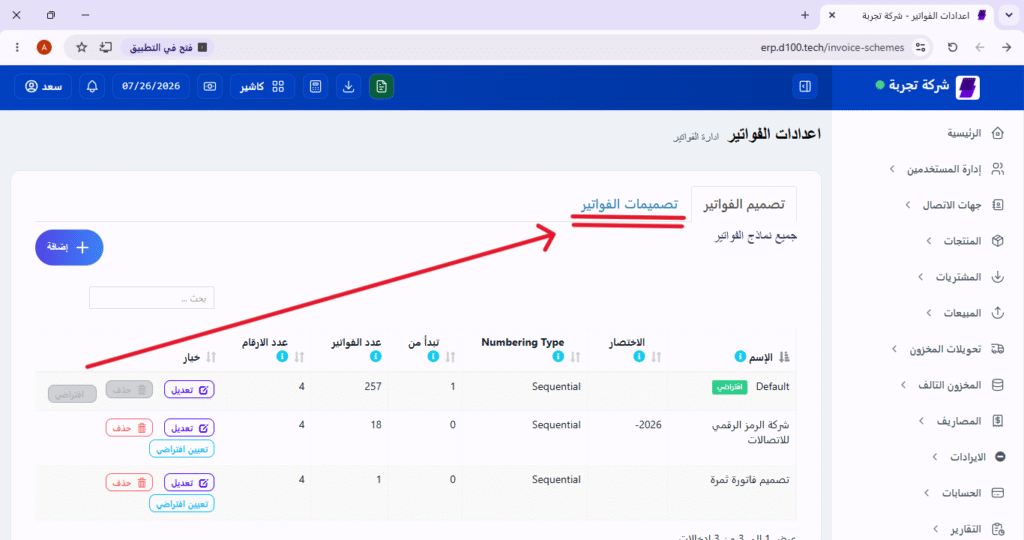
Step 3: Navigate to Invoice Designs
Within the invoice settings, click on “Invoice Templates / Designs” to view all available templates. #
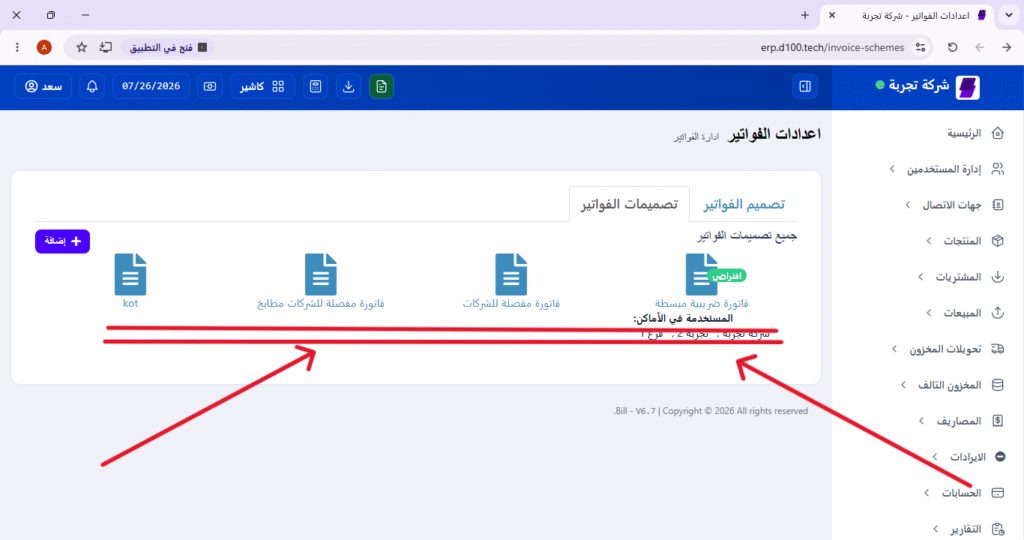
Step 4: Selecting the invoice to be modified
From the list of designs, select the invoice you wish to modify by clicking on it. #
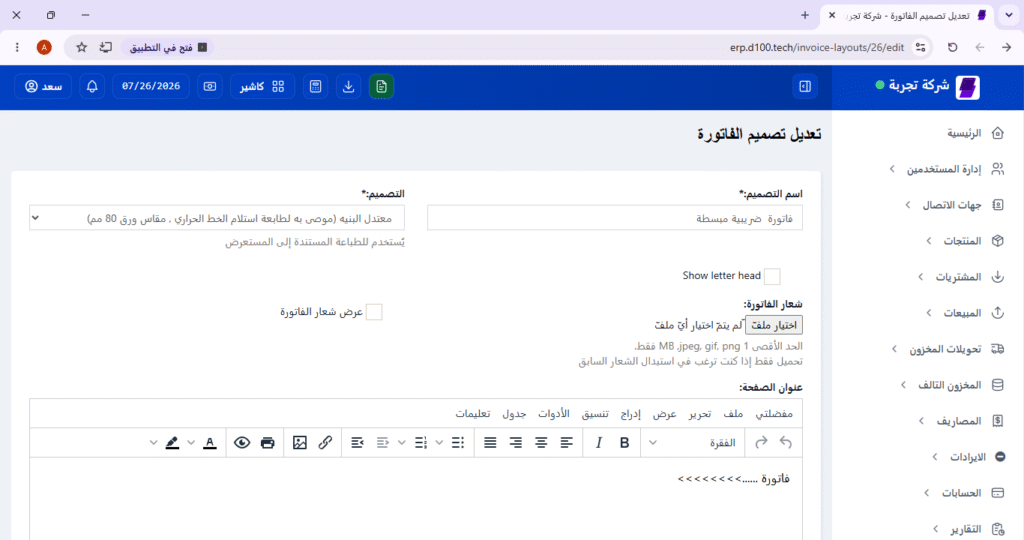
Step 5: Make the required adjustments
Start modifying the content or design as desired (e.g., fonts, fields, the logo, or any other data). #
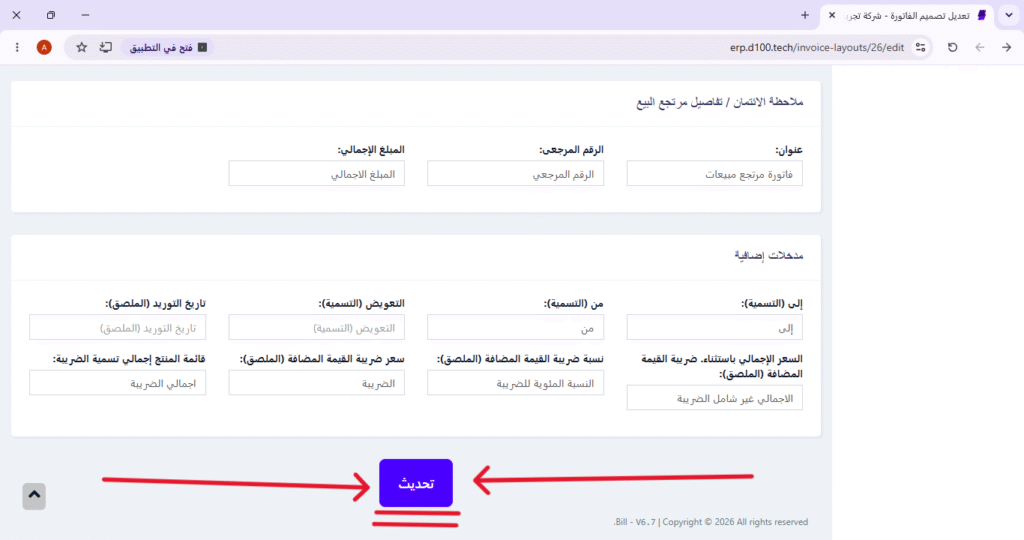
Step 6: Save changes
After finishing the edits, scroll to the bottom of the page and click the “Update” button. #
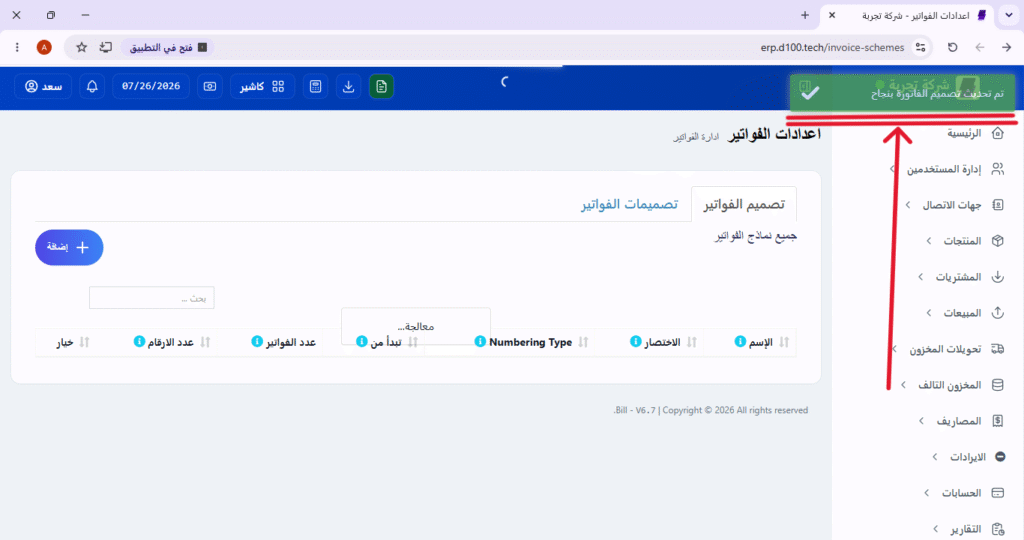
Step Seven (Final Step): Confirming the Operation’s Success
A confirmation message will appear stating “Invoice updated successfully,” indicating that the changes have been permanently saved. #
✅ Additional tips: #
- Make sure to review the invoice after the update to ensure the changes appear as required.
- It is recommended to create a backup of the current design before making modifications (if possible).


