Have you noticed the program running slowly, or the appearance of unexpected errors?
Don’t worry! We’ve added a quick and easy feature to clear temporary data and boost the program’s performance in seconds.
Follow the steps below:
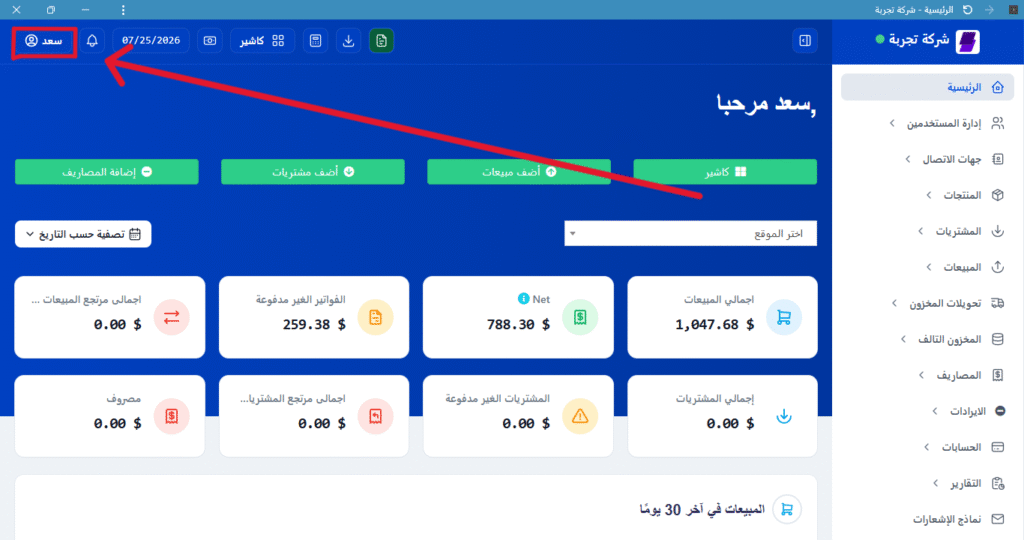
Step 1: Tap the profile picture. #
From the program’s main interface, look at the top left; you will find:
- Either a personal photo (if you have previously added one).
- Or the account username (e.g., Ahmed, Sarah, or ali).
👉 Tap on it.
Step 2: Select “Personal Data” #
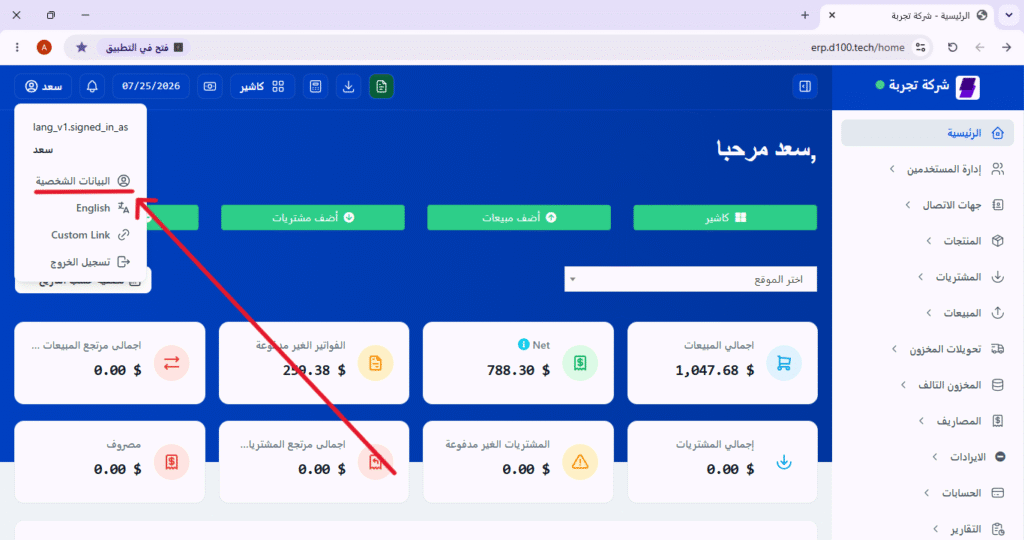
After clicking on the image, a drop-down menu (options menu) will appear.
From this list, select: Personal Data.
Step 3: Scroll down and find the button #
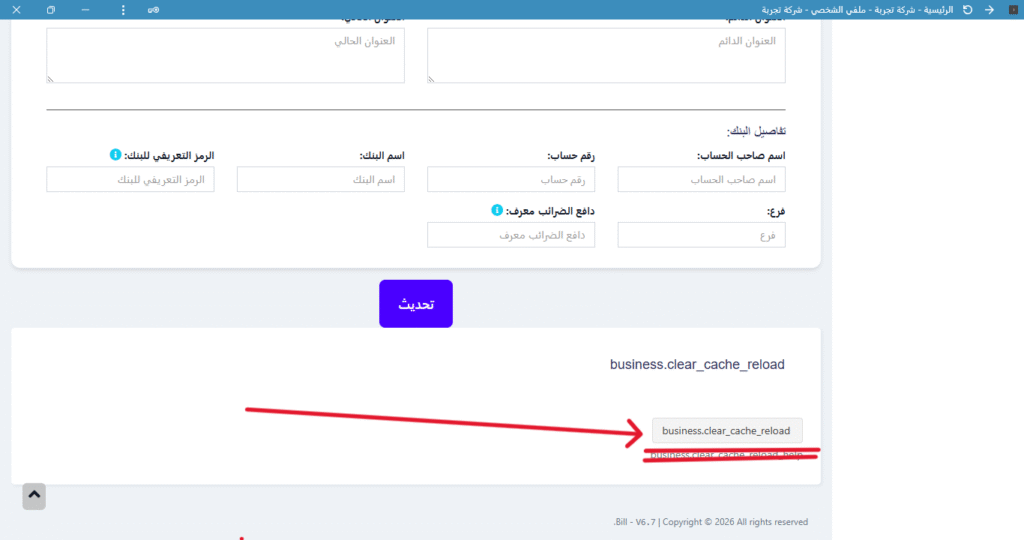
On the personal data page, scroll down to the very bottom.
You will find a button labeled:
business.clear_cache_reload #
🔴 Don’t let the technical name put you off! This is the magic button that will clear your temporary data.
👉 Press the button.
Step 4: Confirm the operation #
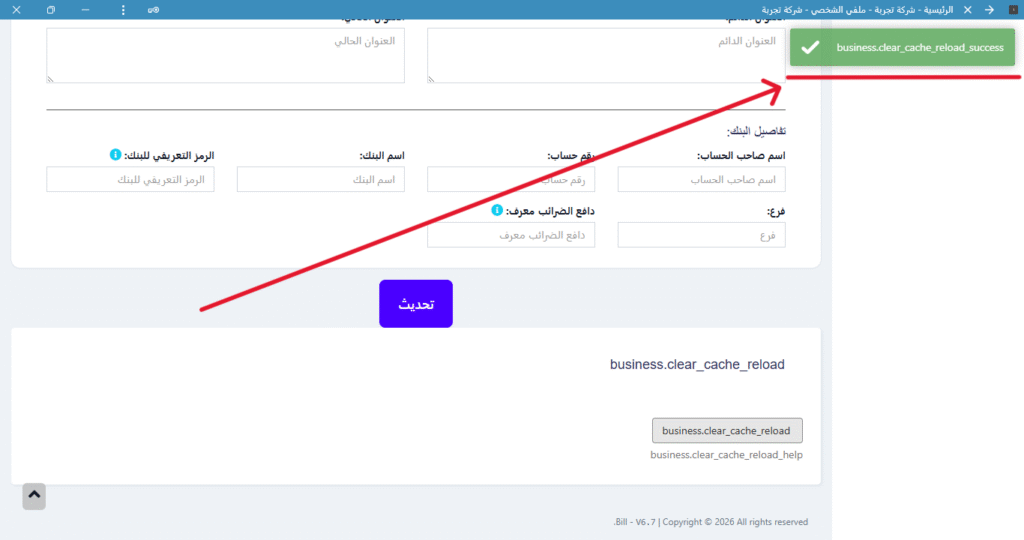
After pressing the button, a green confirmation message will appear at the top of the screen, reading:
✅ business.clear_cache_reload_help #
What does that mean?
This means that the process of clearing temporary data was successful, and the program has been fully updated.
🎉 Your program is now running fast, just like new!


