Purpose of this procedure:
To designate a specific invoice as the default design, ensuring it is automatically used when creating new invoices, rather than having to select the design each time.
Appointment steps: #
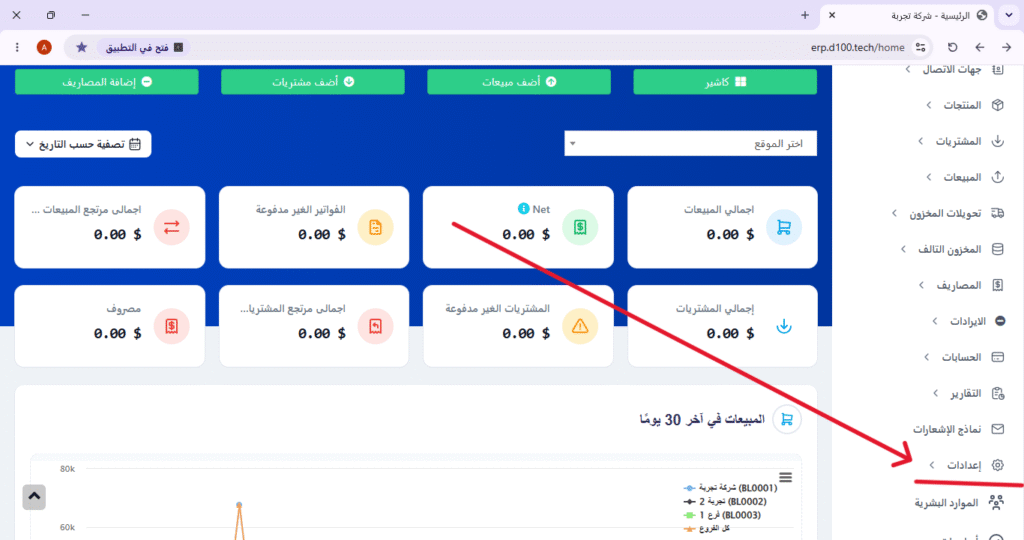
❶ From the main interface
- Scroll down the page a little.
- Look for the “Settings” option ⚙️, then click on it.
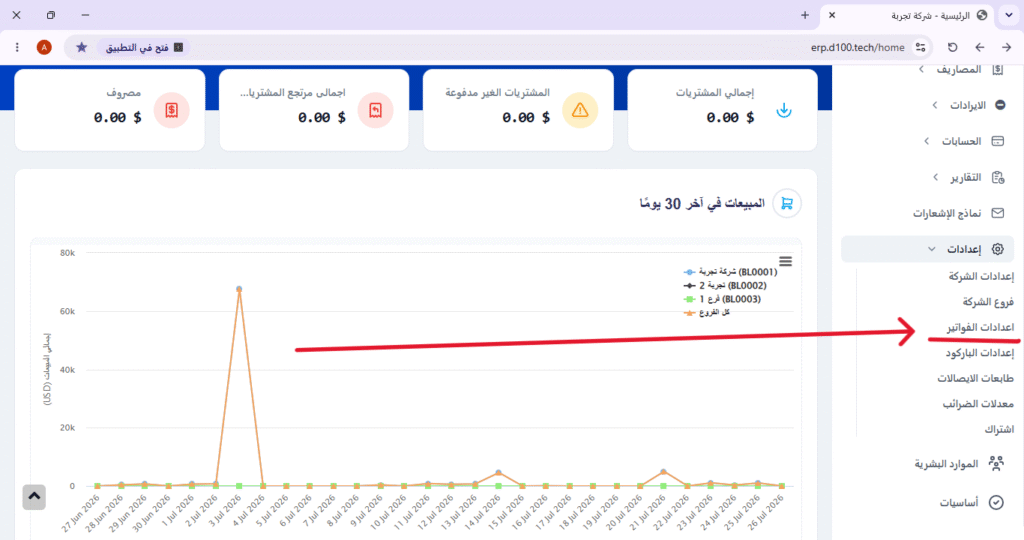
❷ Invoice Settings
- From the settings menu, select “Invoice Settings”.
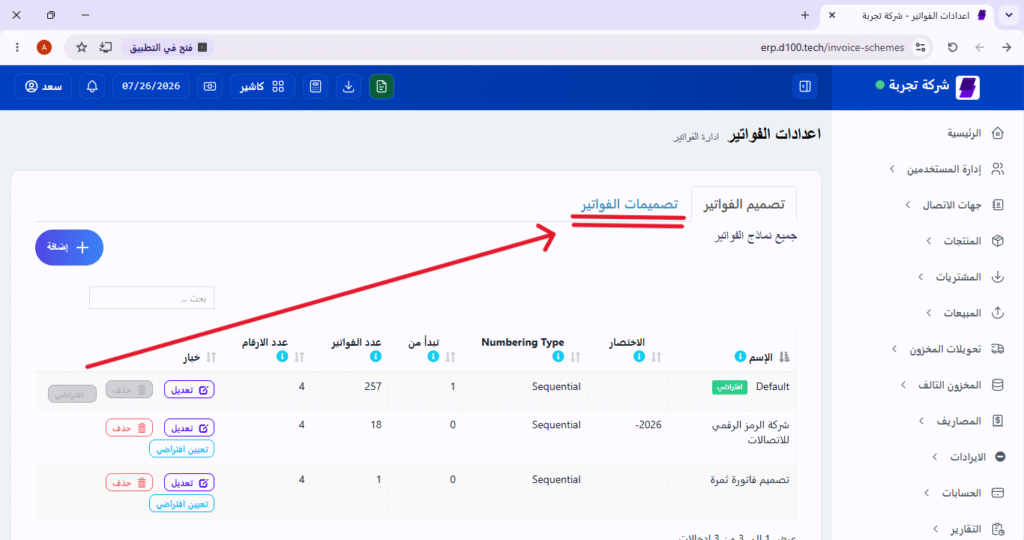
❸ Invoice Designs
- From the invoice settings page, click on “Invoice Designs” or “Templates”.
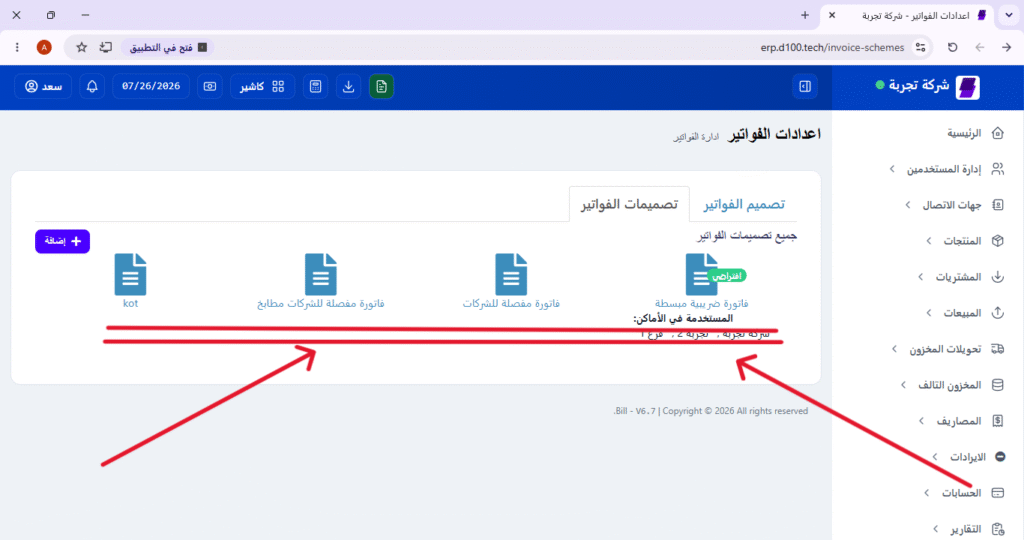
❹ اختيار الفاتورة المطلوبة
- A list of all available invoice designs will appear.
- Select the design you want to set as the default invoice, then click on it.
❺ Set as default
- Scroll down a little on the same page.
- Look for the “Set as Default” or “Make Default” option.
- Click the box or the checkmark ✓ next to it to enable it.

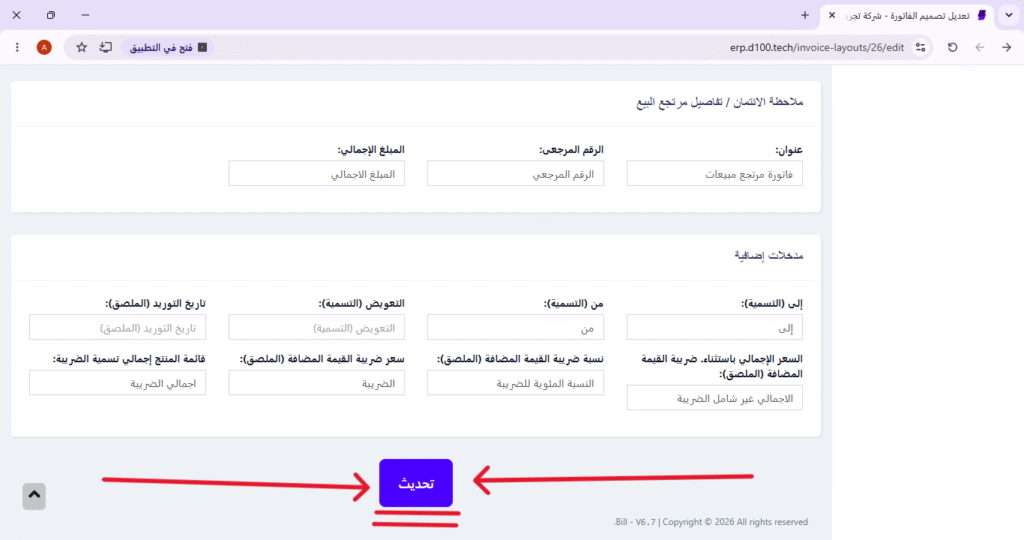
❻ Update
- Scroll to the bottom of the page.
- Click the “Update” button.
Result:
✅ The selected design has become the default invoice and will be used automatically when creating any new invoice in the future.
⚠️ Important Notices: #
- Choosing the right design: Ensure that the design is the one you actually want for new invoices before setting it as the default.
- Change applies to new invoices only: Setting the design as the default does not alter previously created invoices; it applies only to future invoices.
- Option to change later: You can change the default design at any time by repeating the same steps and selecting a different design.
- Preview before setting: Use the “Preview” option before setting the design as the default to check its final appearance.


