Description
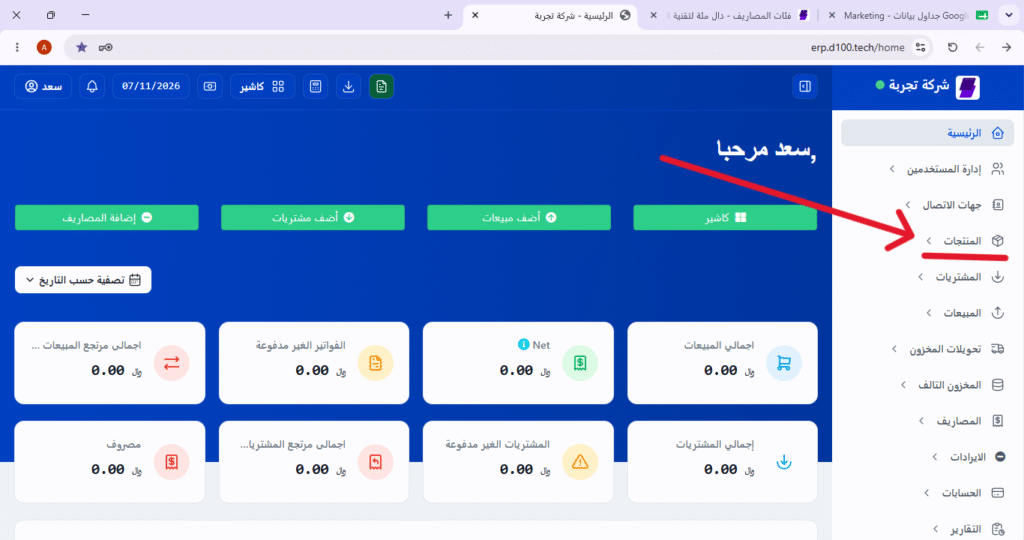
1. Tap the “Products” icon from the main menu. #
From the program’s main screen, click the “Products” button (usually located in the sidebar).
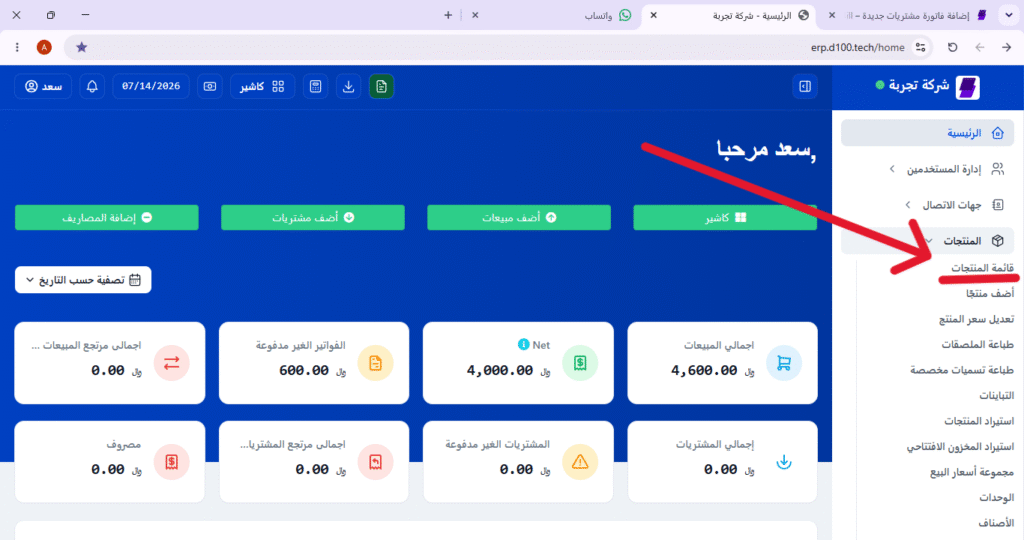
2. Select “All Products” to view all products. #
Select “All Products” to display a list of all items registered in the system.
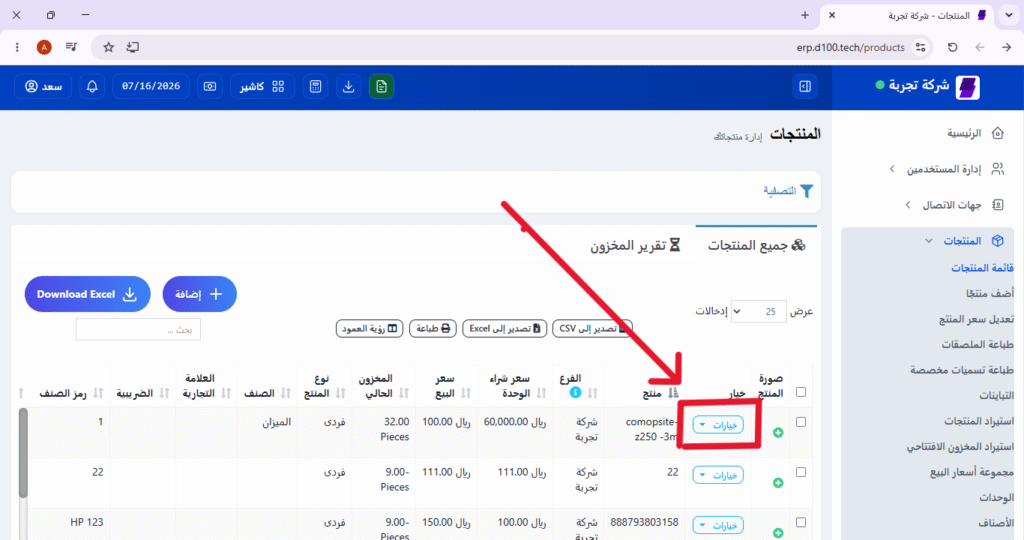
3. Search for the desired product, then press the “Edit” button (or click on the product name). #
Find the product for which you wish to adjust the quantity (you can use the search bar to locate it easily), then click the “Edit” button.
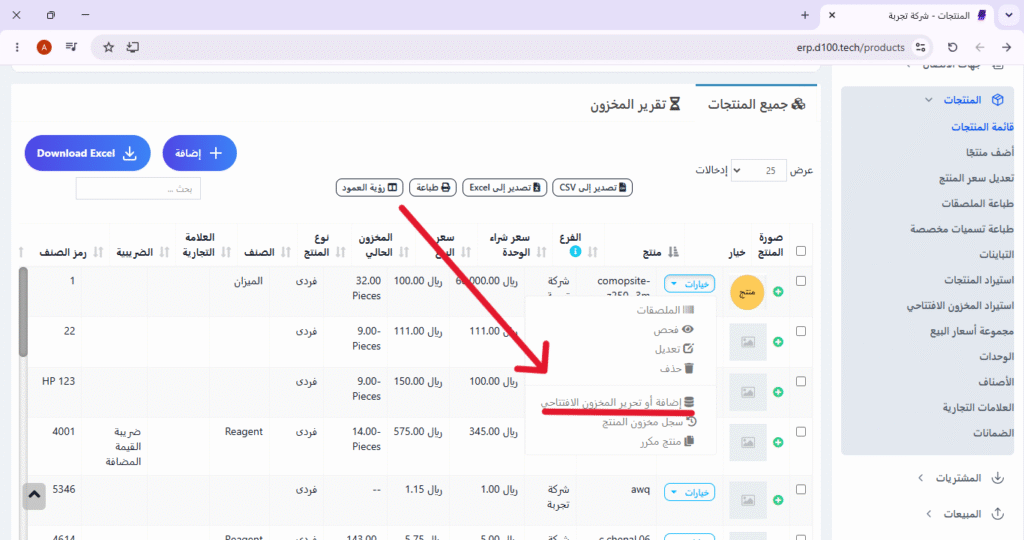
4. From the edit window, click the “Edit Opening Stock” option. #
After opening the product data editing window, locate and click the “Edit Opening Stock” option. (This option is used to set the product’s initial quantity before sales begin.)
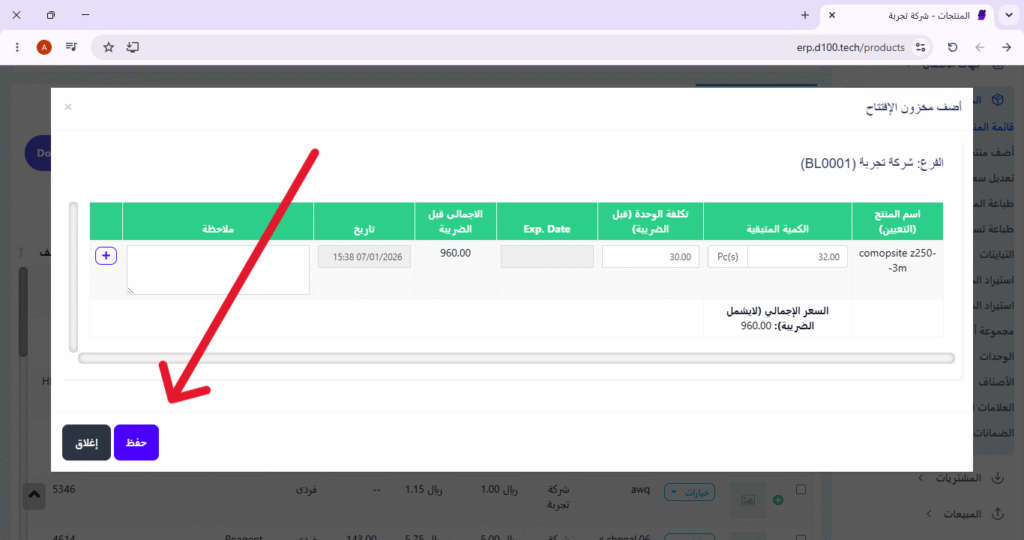
5. Enter the new quantity in the designated field (labeled “Remaining Quantity”). #
A field labeled “Remaining Quantity” will appear. Enter the new figure for the quantity you wish to add or modify.
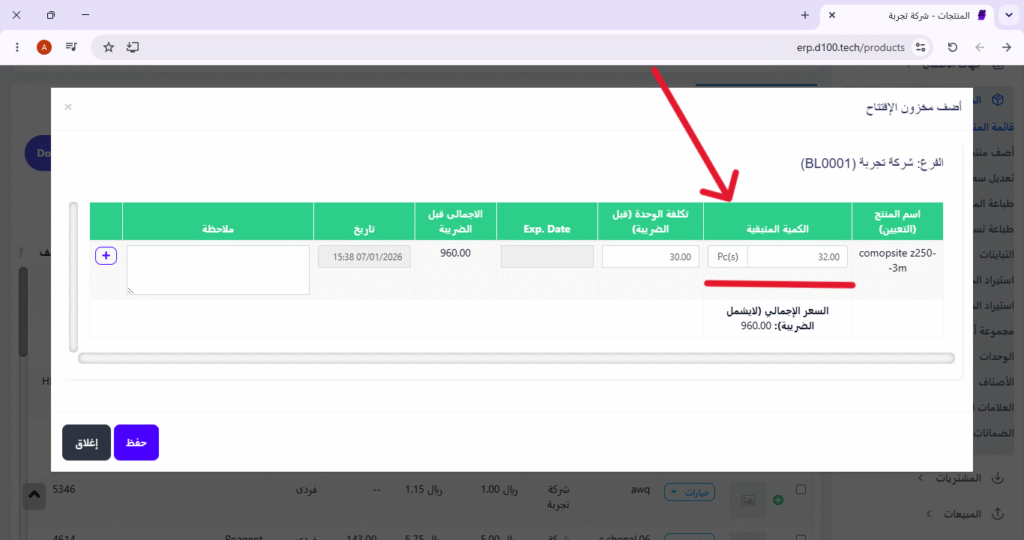
6. Click “Save” to apply the change. #
After entering the quantity, click the “Save” button (at the bottom of the window) to apply the change. A confirmation message will appear indicating that the inventory has been successfully updated.