Remove Headers & Footers from Invoice Guide
Objective: Remove headers and footers from the invoice print page to obtain a clean copy free of extraneous elements.
Steps to remove headers and footers: #
Step 1: Open additional print settings
Before printing the invoice, on the print preview page that appears prior to printing, click on the “More Settings” or “Advanced Options” option.
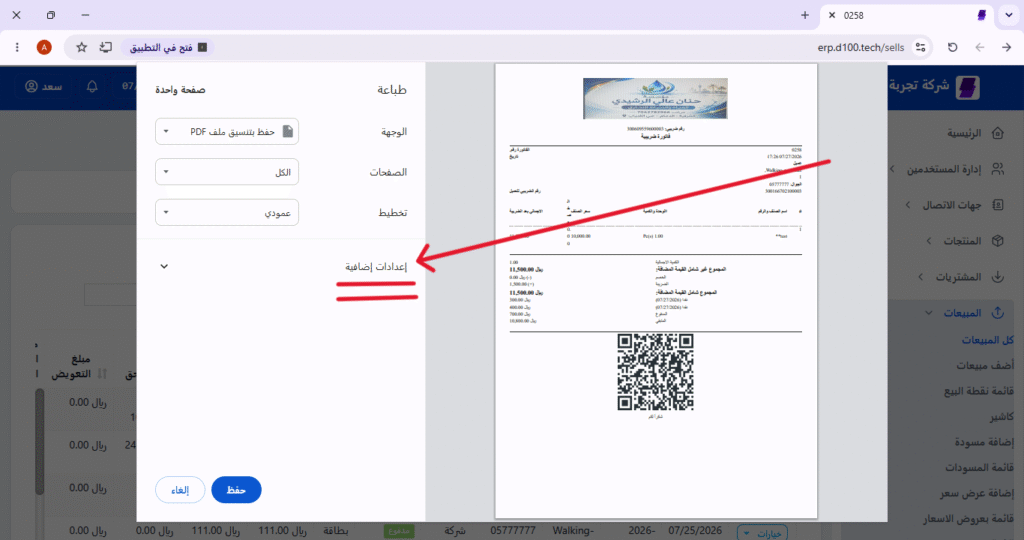
Step 2: Disable Headers and Footers
Scroll down the page slightly, locate the “Headers & Footers” option, and uncheck the box next to it.

Step 3: Save Settings and Print
After disabling the option, click the “Save” or “Print” button to apply the changes and print the invoice without headers or footers.

✅ Additional tips: #
- Make sure to disable the option before pressing the final print button.
- These settings affect only the printing of the current invoice and will not change the default settings for next time (unless you save them as a preset).
- Use this feature to generate clean, professional invoices free of page numbers or browser headers.


