Objective: To independently customize the invoice layout (design) for each company branch.
- Steps to change the branch invoice layout:
- Step 1: Access System Settings
- From the main interface (front-end), scroll to the bottom of the page, then click on the “Settings” option.
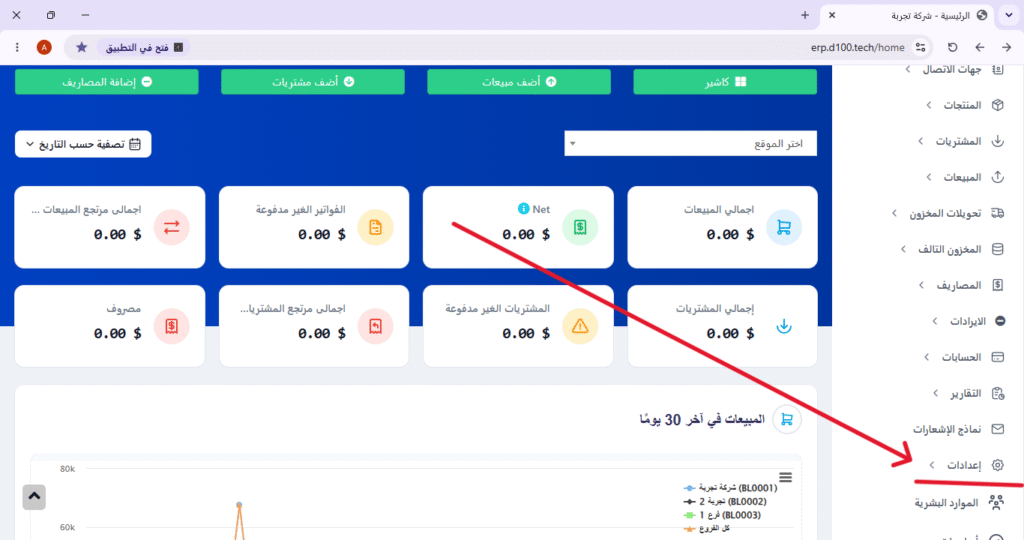
- Step 2: Open the list of company branches.
- From the settings menu, select “Company Branches” to access the list of all registered branches.

- Step 3: Find and edit the required branch.
- From the list of branches, locate the branch for which you wish to change the invoice layout, then click the “Edit” button next to it.

- Step 4: Go to invoice layout settings.
- After opening the branch editing page, scroll down slightly until you find the “Sales Invoice Layout” section. From the drop-down menu, select the invoice (design) you wish to apply to this branch.

- Step 6: Save changes
- After making your selection, scroll to the bottom of the page and click the “Save” button to apply the changes.

- Step 7: Confirming the success of the operation
- A confirmation message will appear indicating that the changes have been successfully saved, meaning the new design has been applied to the invoices for this branch.

✅ Additional tips: #
- Verifying the Design: After saving, it is recommended to generate a test invoice for this branch to ensure the new layout appears as intended.
- Multiple branches: You can repeat these steps for each branch individually, allowing you to customize a different design for each branch based on its specific needs.
- Layout: Ensure that the design you choose is compatible with the branch details (such as the logo, address, and phone number).


