Objective: To easily add or change the company logo in the invoice design via the system’s front-end interface.
Steps to add the logo to the invoice: #
Step 1: Access System Settings
From the main interface (front-end), scroll to the bottom of the page and click on the “Settings” option.
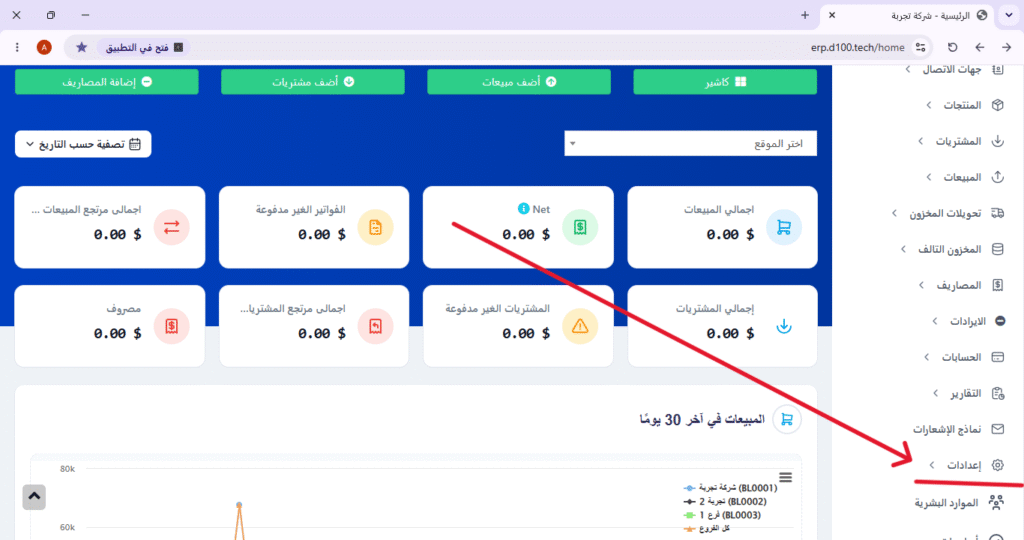
Step 2: Open Invoice Settings
From the settings menu, select “Invoice Settings” to access customization options.
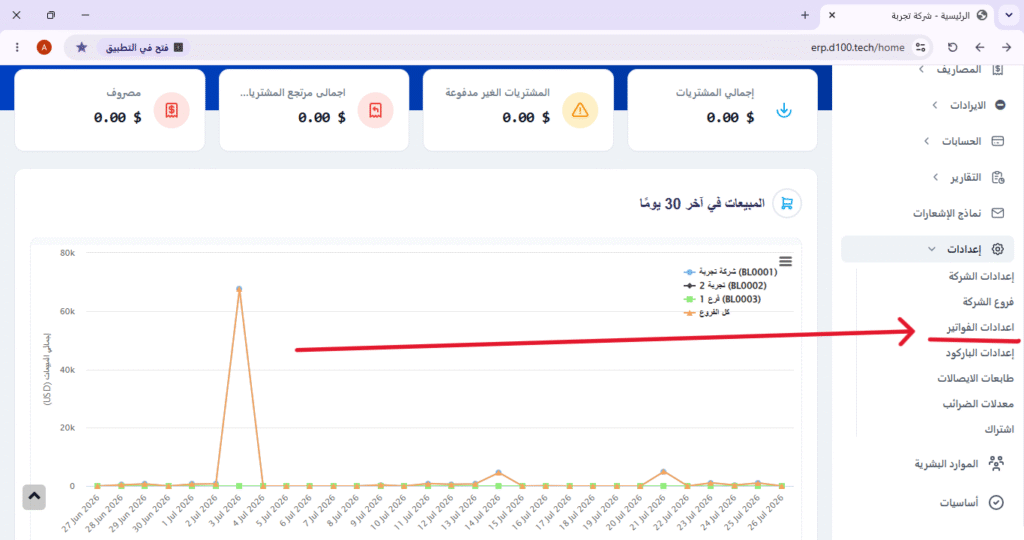
Step 3: Navigate to Invoice Designs
Within the invoice settings, click on “Invoice Templates / Designs” to view all available templates.
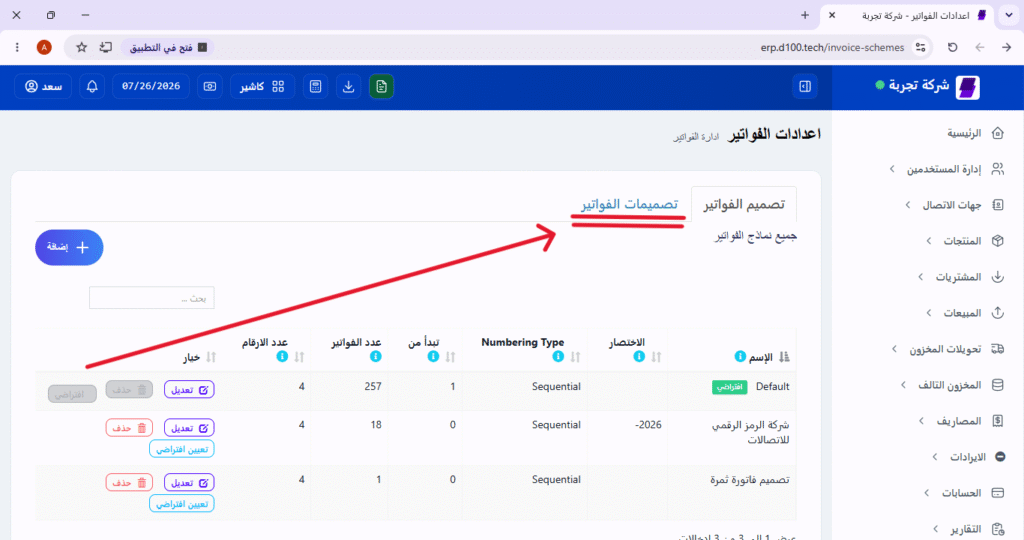
Step 4: Selecting the invoice to be modified
From the list of designs, select the invoice to which you wish to add the logo by clicking on it.
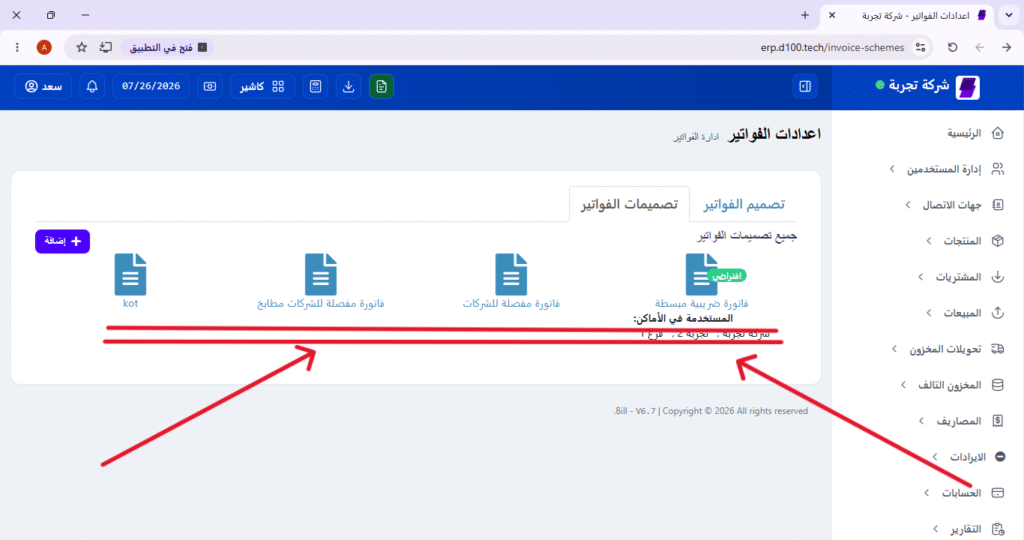
Step 5: Enable the invoice logo display
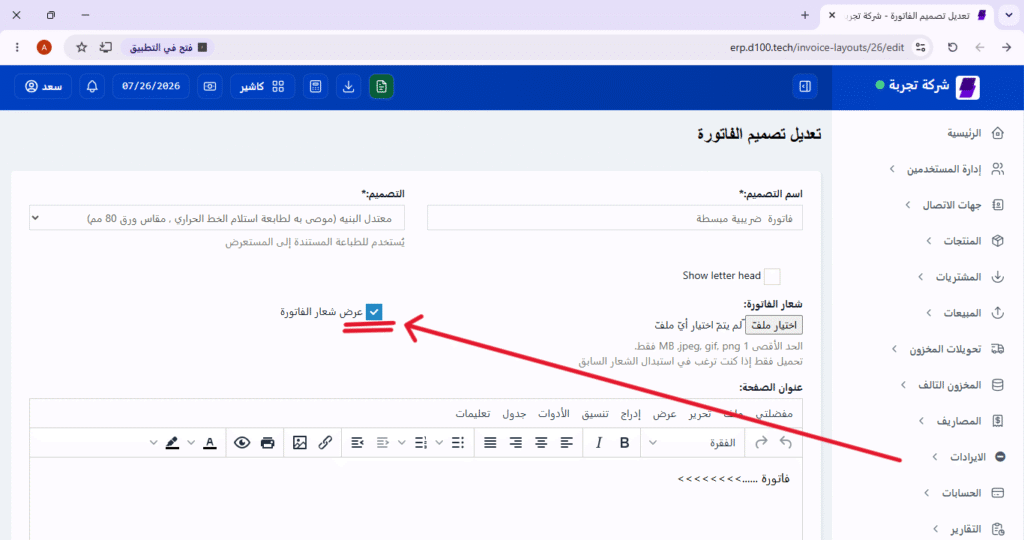
After opening the invoice design, locate the logo option, then click the checkbox for “Show invoice logo” to enable it.
Step 6: Upload the new logo
Click the “Choose File” button to open the file explorer on your device, then select the logo image you wish to use and upload it to the program.

Step 7: Save Changes
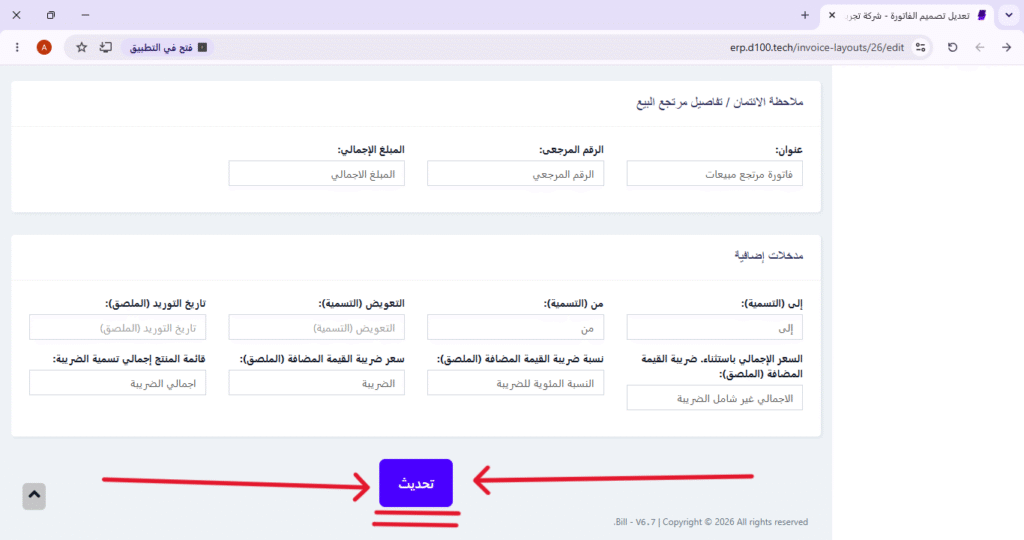
After uploading the logo, scroll to the bottom of the page and click the “Update” button.
Step 8: Confirming the operation’s success
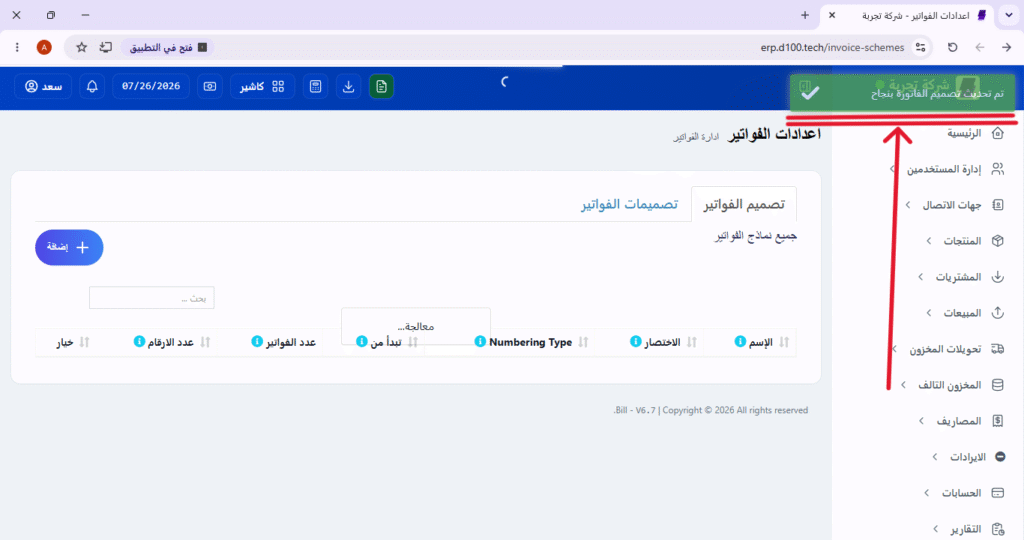
A confirmation message reading “Invoice updated successfully” will appear, indicating that the logo has been permanently saved.
✅ Additional tips: #
- Image size: It is recommended to use a logo image of an appropriate size (preferably a PNG with a transparent background) to ensure the best quality on the invoice.
- Preview: After the update, it is recommended to open a sample invoice to verify that the logo appears correctly.
- Backup: If there is an old logo, ensure you keep a copy of it before replacing it (if possible).


