Purpose of this procedure:
To export the invoice as a PDF file for sharing with the client via email, WhatsApp, or any other application, or for saving it in the company’s files.
Export steps (two methods): #
Method 1: Immediately after issuing the invoice. #
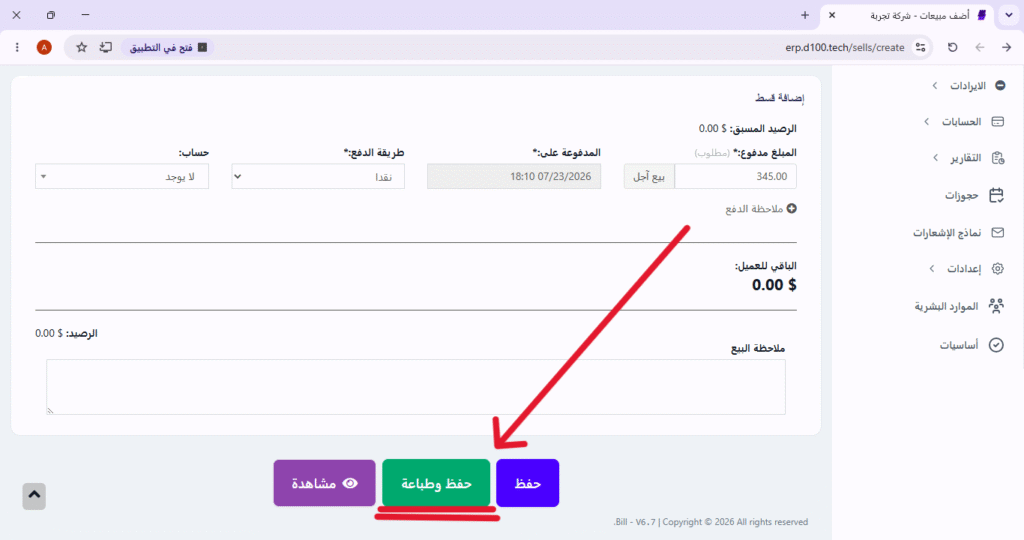
Step One:
After entering the invoice details, click the “Save & Print” button.
Step Two:
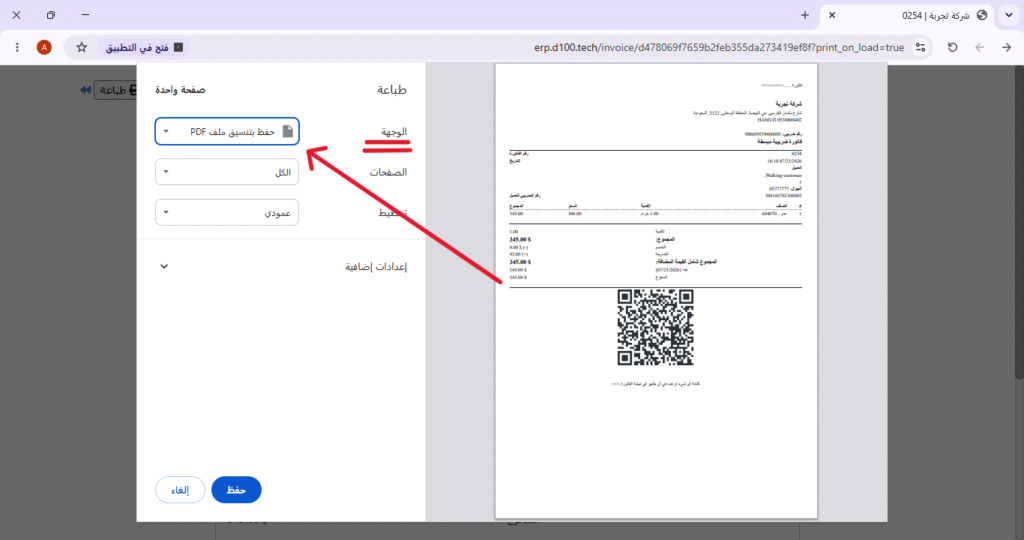
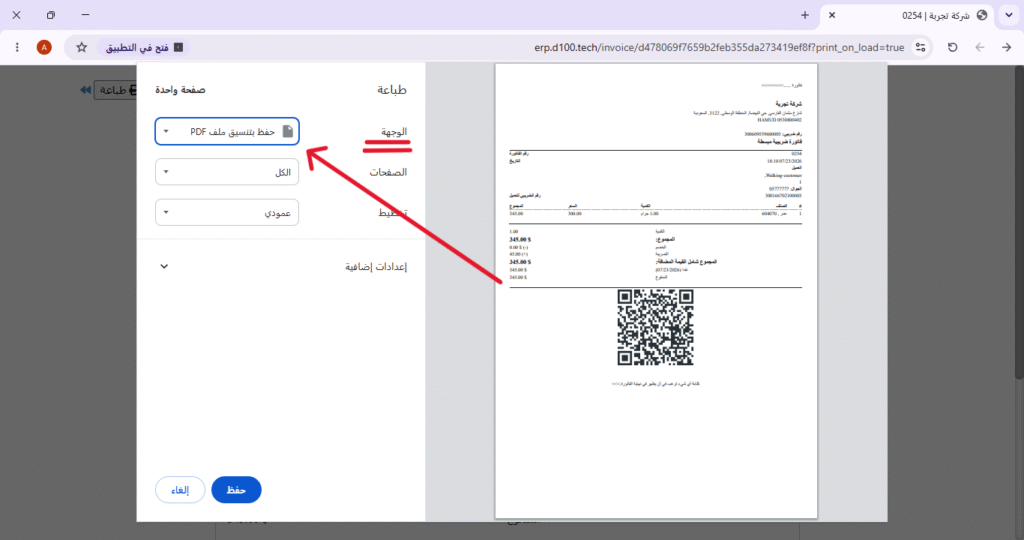
In the print window that appears, look for the “Destination” option and select “Save as PDF.”
Step 3:
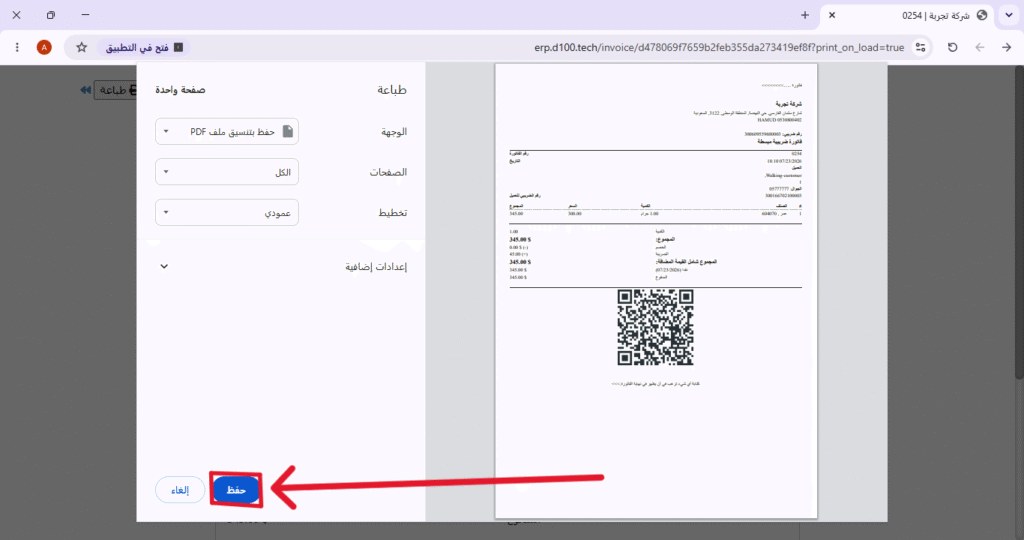
Select “Save,” then choose the appropriate location on your device to save the file.
Second method: From the Invoices list (for previous invoices) #
Step One:
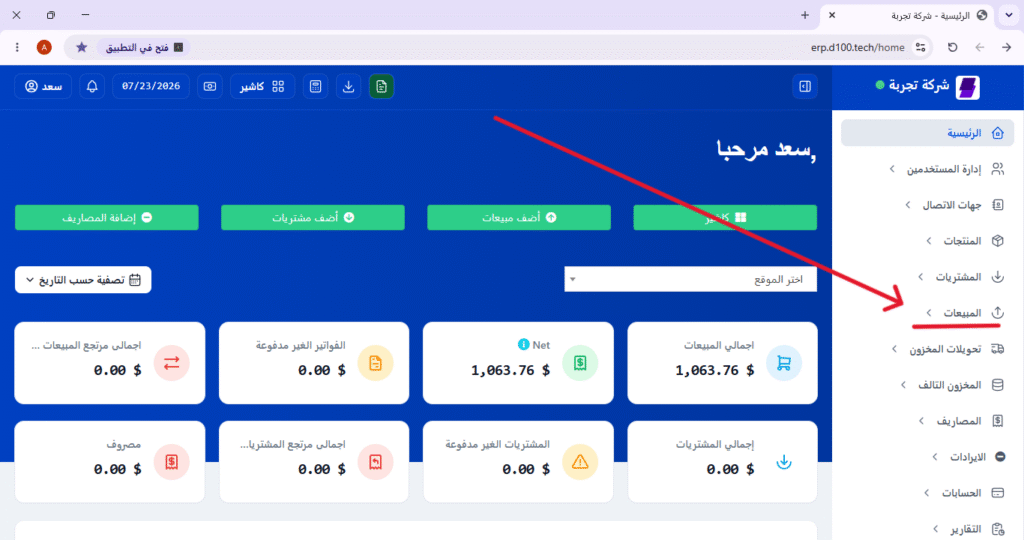
From the program’s main interface, click on the “Sales” menu.
Step Two:
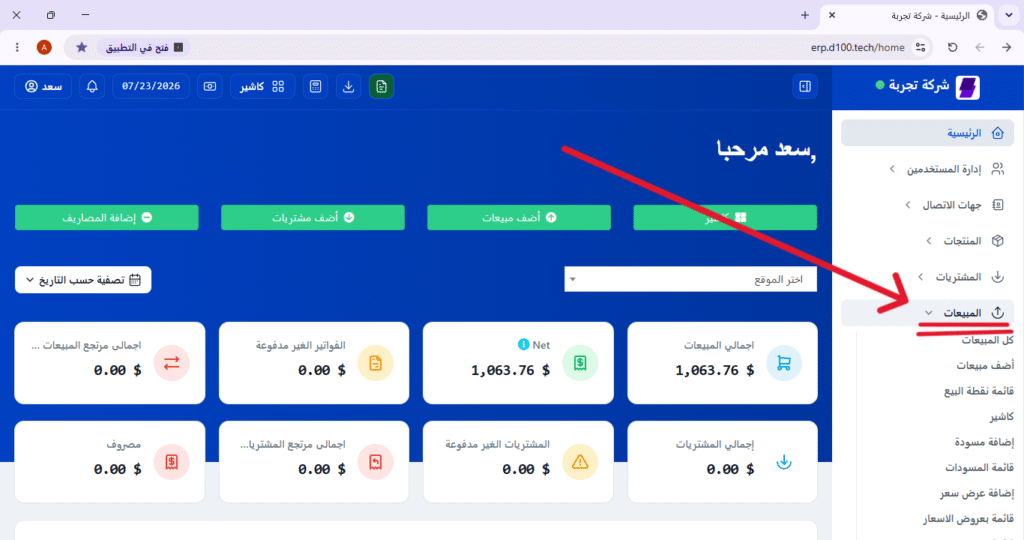
From the Sales menu, select “All Sales” or “Invoices” to view all recorded invoices.
Step 3:
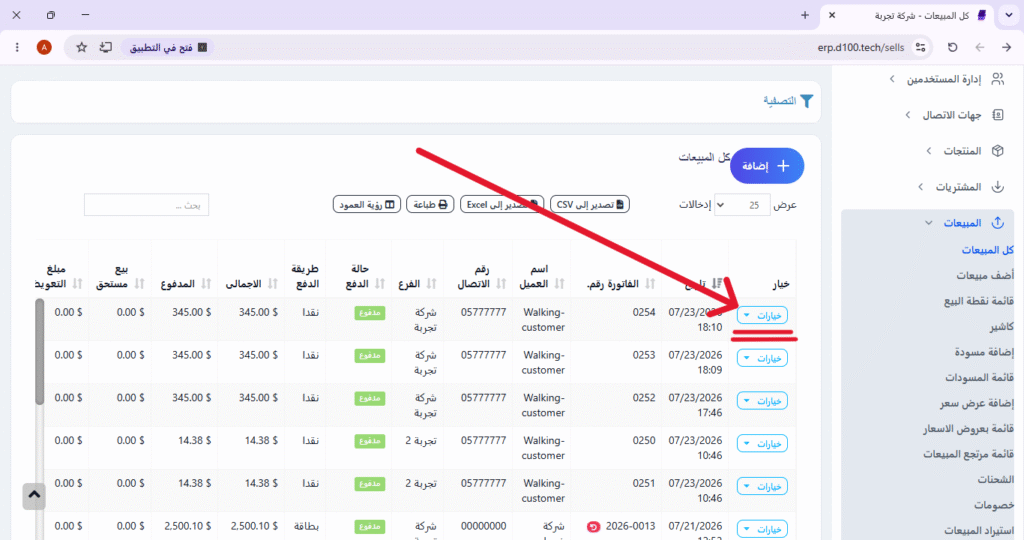
Find the invoice you want to share, then click on it to select it. Click the “Options” icon next to the invoice
(usually light blue).
Step Four:
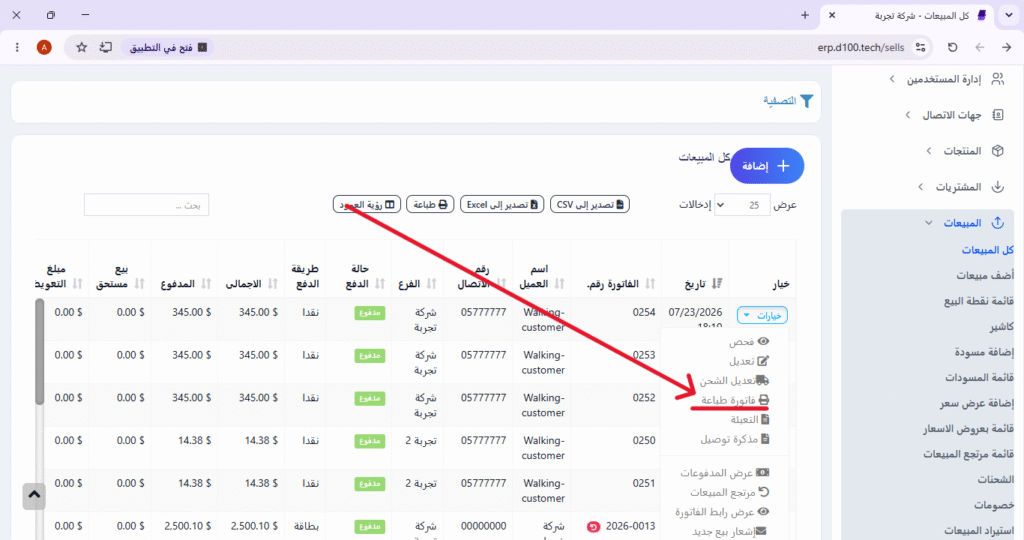
From the drop-down menu, select “Print Invoice” (Print).
Step Five:
The print page will appear, displaying the invoice in its final format.
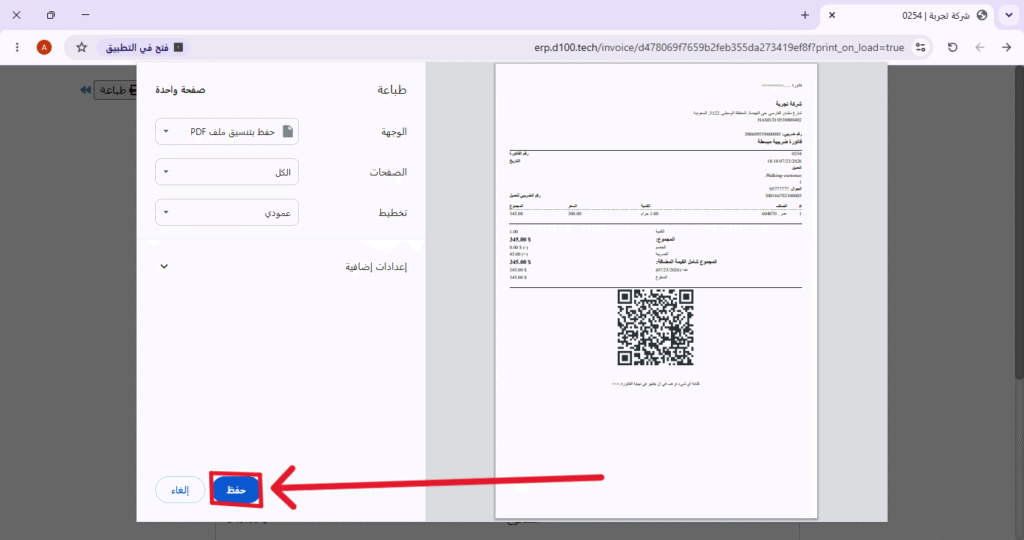
From the print interface, select “Save as PDF” as the destination.
Step Six (Final):
Select “Save,” choose the location on your device where you want to save the file (Desktop, folders, etc.), and then click Save.